Creating a Diagram
One or more Project Diagrams can be created and displayed in the Project Diagram Panel.
Note: Even if a Diagram has been created in a Project Model, it does not appear automatically in the Diagram Panel. For it to appear in the Diagram Panel, you have to double click on the diagram icon in the Project Model.
|
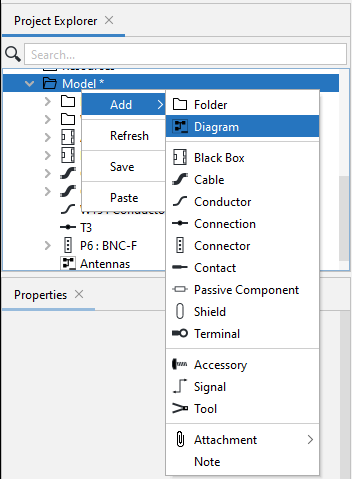
To create a new diagram, right-click on the Model folder and select Add; then from the drop-down list of opjects; select
|
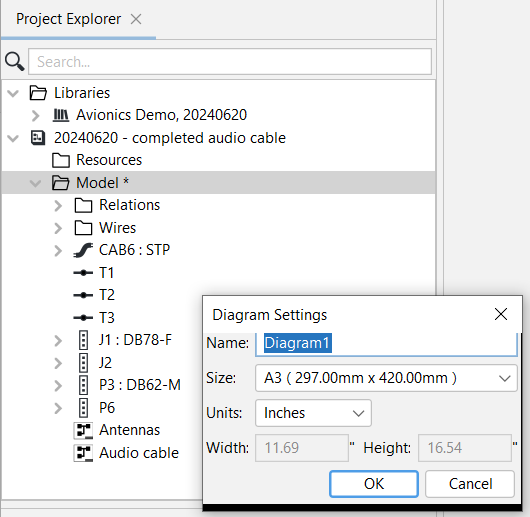
A Wndow appears prompting you for a diagram name and size.
|

|
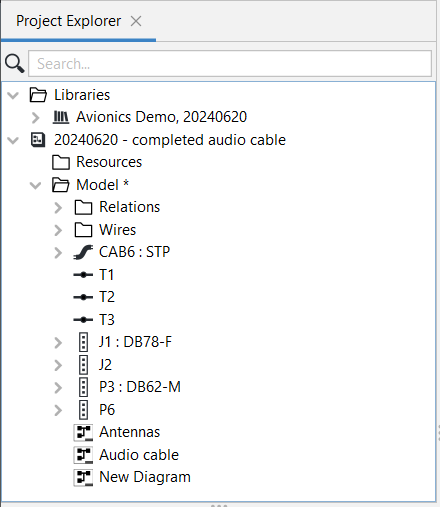
The new
|
Note: One can also set the Paper Size when printing. See Main Menu, File, Print