Introduction to Working with Panel Planner Designs
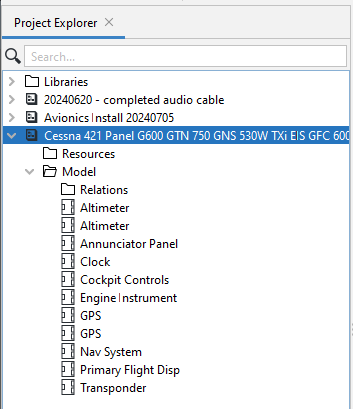
After a Panel Planner design has been imported, it will appear as a Project by the same name in Wiring Planner:
|
|
The imported Panel Planner project that now appears in Wiring Planner includes all the objects that were part of the Panel Planner project. To add the electrical interfaces, select each object and in the Properties panel, click Type. A pop-up showing all the black box objects in the library will appear. Select the appropriate type then click OK. If no type exists, the object may be modeled by right-clicking it and adding connectors and conductor attach points. See Examples of Defining or Typing Panel Planner Elements. |