Adding Shield and Twist Symbols to a Diagram
A shield symbol may be added to conductors on a Diagram.
- Expand the cable in the model to reveal the shield symbol
 .
. - Click the shield symbol and drag it onto the diagram.
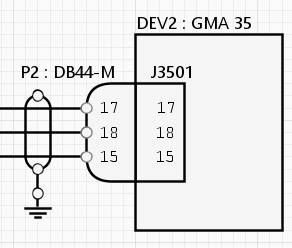
- Click and drag the shield symbol. As you do so, the conductors associated with that shield will be highlighted in green. If the shield symbol touches a conductor that is not associated with the shield, that conductor will be highlighted in red. Drag the shield symbol so that it overlays its conductors.
- Grab the handle at the top or bottom of the shield symbol to lengthen it or shorten it so that it overlays all conductors associated with it.
- If more than one shield symbol are required on the conductors, select the shield symbol on the diagram, press CTRL+C to copy, then press CTRL+V to paste. Drag the copy to the desired position and resize as necessary.
The shield symbol is shown below:
A twist symbol may be added to conductors on a Diagram.
- Expand the cable in the model to reveal the twist symbol
 .
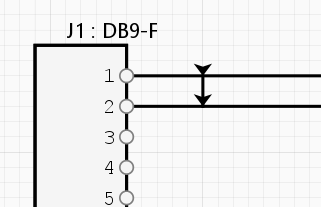
. - Click the twist symbol and drag it onto the diagram. The twist symbol is a vertical line.
- Click and drag the vertical line. As you do so, the conductors associated with that twist will be highlighted in green. If the vertical line touches a conductor that is not part of the twist, that conductor will be highlighted in red. Drag the vertical line so that it overlays its conductors. An arrowhead will appear at each conductor.
- Grab the handle at the top or bottom of the vertical line to lengthen it or shorten it so that it touches all conductors associated with the twist, but does not extend beyond.
- If more than one twist symbol are required on the conductors, select the twist symbol on the diagram, press CTRL+C to copy, then press CTRL+V to paste. Drag the copy to the desired position and resize as necessary.
The twist symbol is shown below: