Adding and Deleting Diagrams
More than one  Diagram can be added to the Diagram Panel by double-clicking the diagram object in the model.
To create a diagrams in a model, right-click on the Model Folder and then select Add, Diagram, as discussed in Working with Models
Note: Even if a Diagram has been created in a Project Model, it does not appear automatically in the Diagram Panel. For it to appear in the Diagram Panel, you have to double-click on the diagram icon in the Project Model.
The tabs of the different diagrams appear next to one another.in the Diagram Panel and they can also be dragged forwards or backwards as required..
To view a particular diagram if there are more diagrams in the Diagram Panel, simply click on the tab.
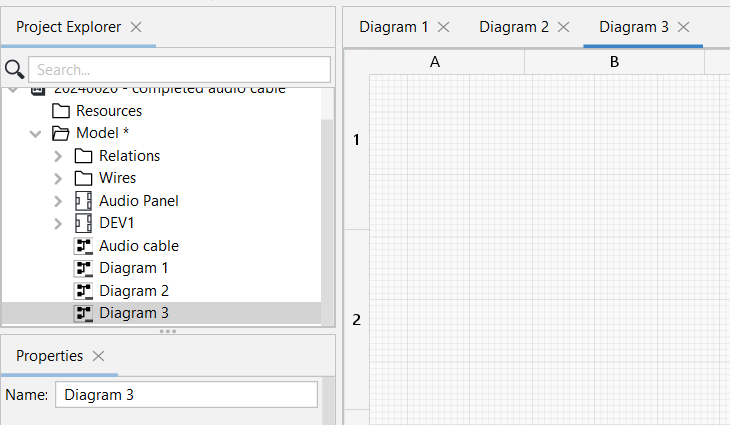
A diagram may be closed by clicking on the "x" in its tab.
Closing a diagram does not delete it. To delete a diagram, select the Diagram object in the model then press the delete key.