Adding Objects to a Project Model
There are three different ways that an object can be added to the Project Model:
1. By right-clicking on the Model folder, clicking Add, then selecting the required object fom the drop-down list.
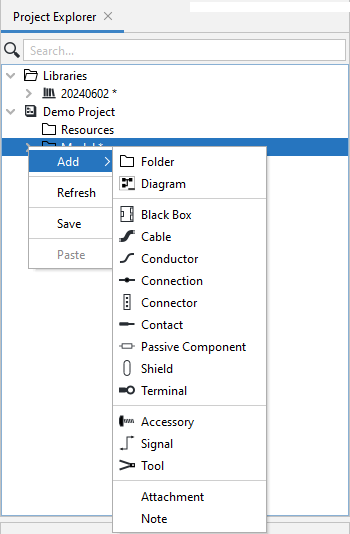
As can been seen this hierarchical and alphabetical list of objects is no different from the way that files are shown in Windows File Explorer or Mac Finder
2. By adding the object from a Library
To add an element from the Library, simply drag the required element from the Library and drop it into the model folder or a subfolder. For example, a Signal from the Library can be dropped into a Signals Folder in the Model, as shown here:
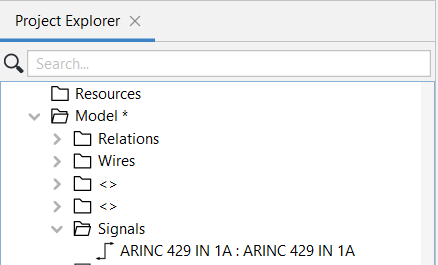
This will add an instance of the library component to the model.
3. By dragging the required object from the Library onto the Diagram.
Doing so automatically adds an instance of the object to the project's Model folder.
Related Topics:
Instantiating a Connector in a Project
Instantiating a Black Box in a Project
Instantiating a Cable in a Project
Instantiating a Conductor in a Project