Revealing and Changing Contacts of a Connector on a Diagram
When first adding a connector to a diagram, its contacts are not shown.
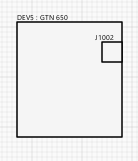
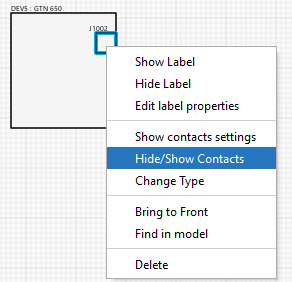
In order to reveal the contacts of the connector. right-click on it. and then from the options select Hide/Show Contacts.
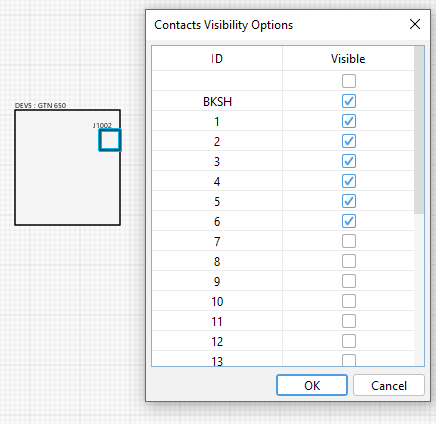
A window then appears listing all the available contacts for the connector. In the checkboxes you can then tick which contacts you want to display on the connector. Here the Backshell is selected plus contacts 1 to 6.
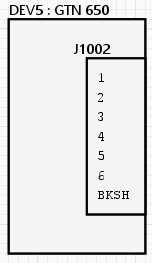
The connector will then appear with the selected contacts:
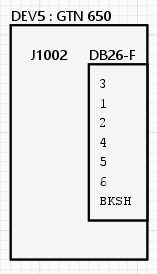
By right-clicking on the connector and selecting Edit Label Properties, you can change the properties that are shown in the label.
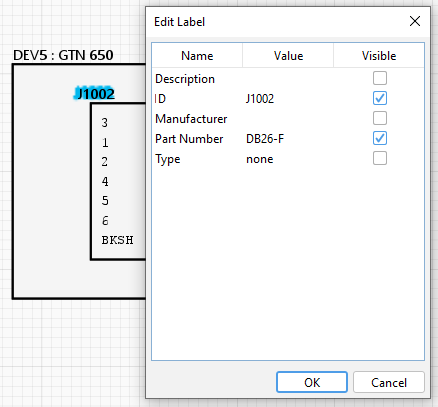
Which then yields:
|
|
You can also opt to Edit the proprties of the connector label.:
|
Which then yields:
|
Note: One cannot change the characteristics (e.g. number of contacts) of a connector specified in a library. However, it is possible to do so for a connector that has been created in a Project Model and has not yet been created (typed) in a library.
Related Topics:
Re-arranging and/or Moving Contacts on a Connector