Re-arranging and/or Moving Contacts of a Connector on a Diagram
|
The contacts on a connector can be re-arranged by clicking on them, holding down the mouse left-key and dragging them to the required positions. This is particularly helpful when a schematic diagram gets very busy and cluttered, and conductors start overlapping one another. |
|
Important Note: One cannot change the characteristics (e.g. number of or/and the positions of ) the contacts of a connector specified in a library - i.e., an Instantiated Connector. However, it is possible to do so for a connector that has been created in a Project Model and is not typed. In this regard see Untyping Model Objects. |
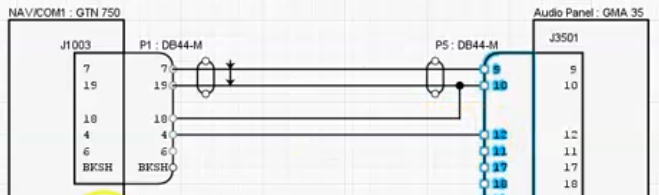
For instance, in the following example, if contact 4 of Connector P1 : DB44-M has to be connected to Pin 12 of Connector P5 : DB44-M, that would be a problem and cause conductors to overlap.
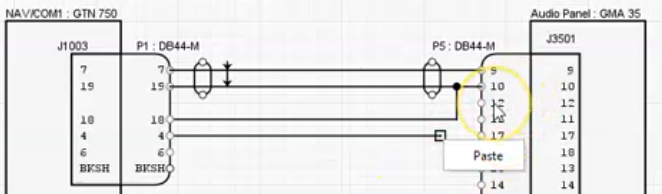
However, there is a workaround, as Contact 12 of Connector P5 : DB44-M can be moved downwards by clicking on it and dragging it down to align it with Contact 4 on Connector P1 : DB44-M.
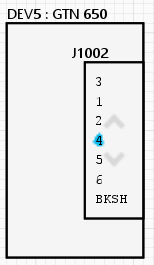
As soon as the contact to be moved is selected by holding the mouse left-key down, it turns blue, until dragged to the
preferred position and then released..
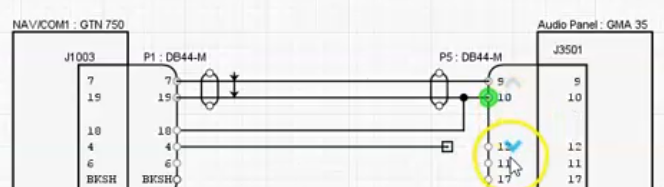
So now Contact 4 on Connector P1 can be connected to Contact 12 of Connector P5.