Mating and Unmating Connectors
When a pair of connectors on a Diagram are mated, they snap together at the mating surface. If they are Valid Mates, then, when one is dragged over the other with the mouse, a green rectangle appears around the stationary connector, signifiying that it is a valid mate.
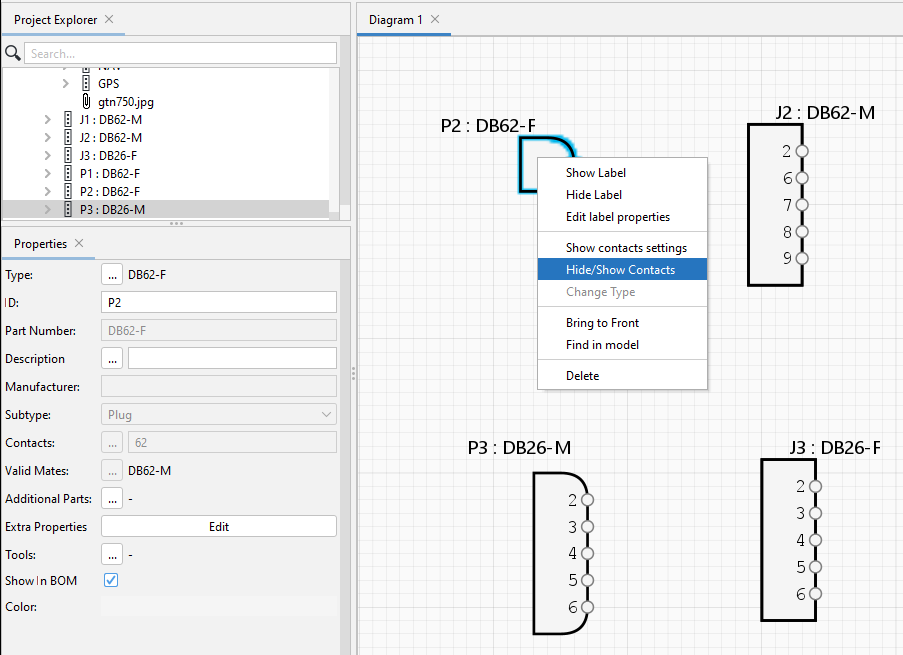
Flagging Valid or Non-Valid Connector Mates
When one connector is dragged into proximity of another connector, if they are valid mates, a green rectangle will appear around the stationary connector. Releasing the mouse button will cause them to snap together as a mated pair.
If they are not valid mates, a red rectangle will appear around the stationary connector, and they will not snapped together.
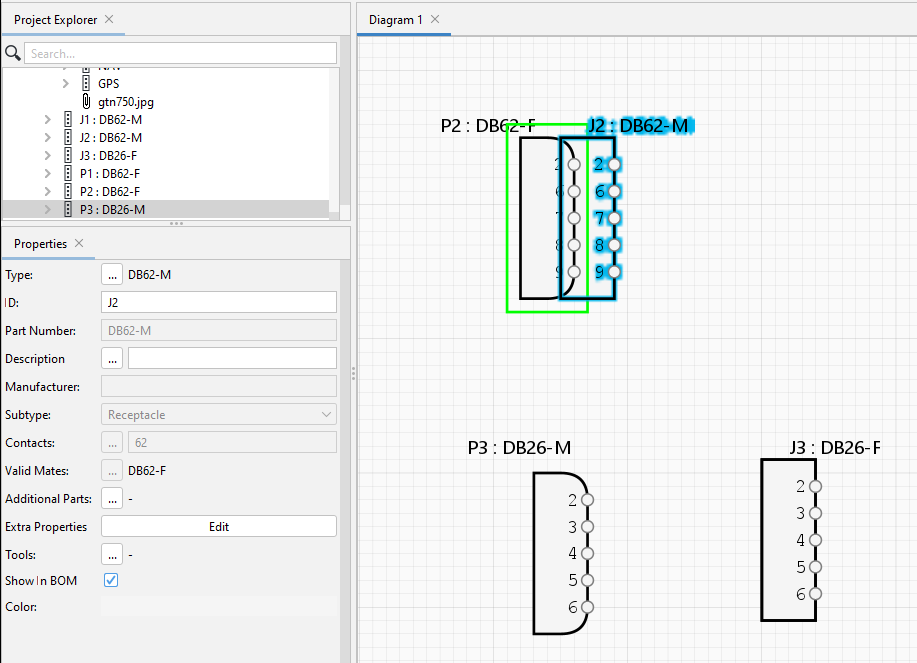
Once mated, moving either connector moves the other.
- Connectors may only be mated if they are instances of library connectors that are defined as valid mates. See Defining Valid Mates.
- Connectors are mated on a diagram by dragging one connector and dropping it onto another.
Note: If the pair are valid mates, they will be highlighted green before the mouse button is released. If the pair are not valid mates, they will be highlighted red, and will not snap together.
- Connectors may be unmated by pressing the Shift key while left-clicking and dragging one connector away from the other.
- Mating connectors with different contacts exposed will cause the mated pair to have the same contacts exposed.
Related Topics:
Defining Connector Subtypes and their Valid Mates
Instantiating a Connector in a Project