Adding a Connector to a Library
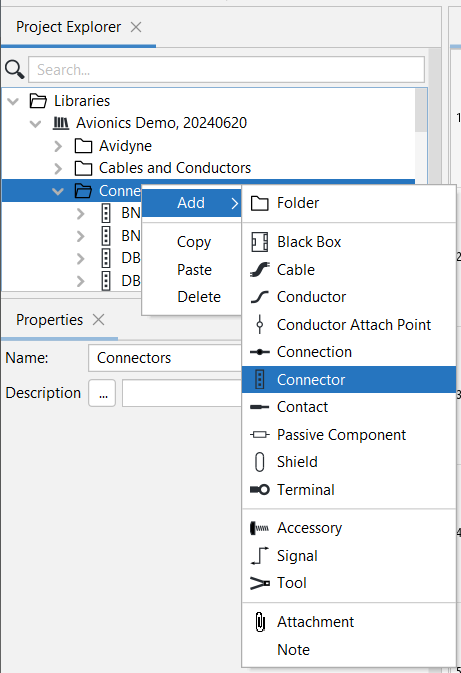
Connectors can be added to a Library, in two different ways:
- Right-click on folder or a
 Black Box, then select Add,
 Connector.
In the Properties Panel:
a. Enter the name. Most often the name will be the part number. For that reason, Wiring Planner will automatically populate the part number field with the value entered in Name.
b. If the Part Number is different from the name, enter it in Part Number.
c. Description and Manufacturer are optional fields.
d. Optionally, select a Subtype. Connector Subtypes include Plug, Receptacle, Symmetric, Undefined (default). See Renaming Contacts.
e. Enter the number of contacts. Contacts are numbered by default, but may be assigned alphabetic IDs by clicking the ... symbol next to Contacts. See Renaming Contacts.
f. Add valid mates. See Adding Valid Mates.
2. When a Connectors has or had been created in a Project, that is not yet in a Library, that connector can be added to a library as follows:
For the new connector created in a Project Model, designated P11 My New Connector, right-click on it and then select Create Library Entry.
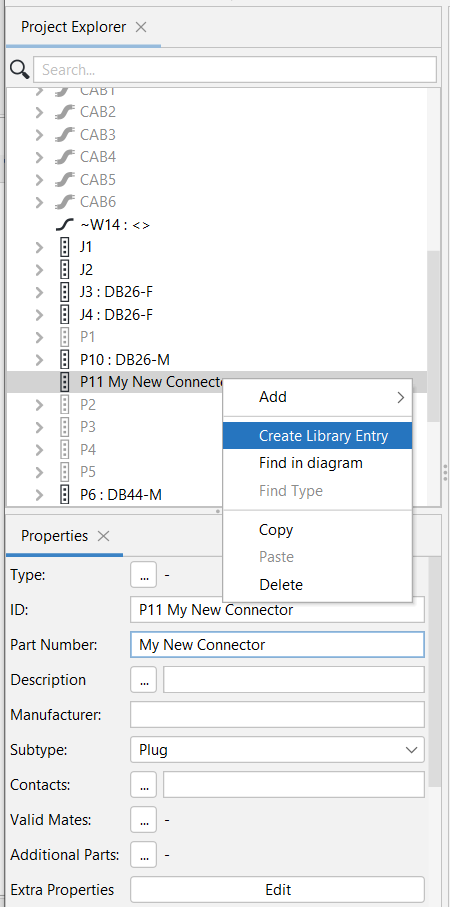
When prompted, select the library where the New Connector should be created:
